畫面撕裂救星還是延遲元兇?G-Sync 與垂直同步到底要不要開
一句話說明:畫面撕裂是顯示卡輸出和螢幕更新不同步造成的。垂直同步(V-Sync)能消除撕裂但會增加延遲;G-Sync/FreeSync 讓螢幕跟著顯示卡的幀率更新,幾乎不增加延遲。競技遊戲以低延遲為優先,單機大作則建議開啟 G-Sync/FreeSync。
在遊戲裡快速轉身,畫面中間突然出現一條「斷層」?為了解決這個問題,你打開了遊戲設定裡的「垂直同步 (V-Sync)」,畫面變完美了,但滑鼠卻變得像在泥巴裡游泳一樣黏手,根本瞄不到人?
這就是讓無數玩家頭痛的世紀難題。今天我們用最簡單的方式,一次搞懂這些「Sync」到底在幹嘛。
Screen Tearing Savior or Lag Generator? G-Sync & V-Sync Explained
In one sentence: Screen tearing happens when the GPU's output and the monitor's refresh are out of sync. V-Sync removes tearing but adds input lag; G-Sync/FreeSync make the monitor follow the GPU's frame rate with almost no added lag. Prioritize low latency in competitive games, and turn on G-Sync/FreeSync for single-player titles.
You flick your mouse in-game, and suddenly the middle of your screen "splits" horizontally? To fix it, you turn on "V-Sync" in the settings. The screen looks perfect now, but your mouse feels like it's dragging through mud. You can't aim anymore.
This is the classic dilemma. Let's break down what all these "Sync" settings actually do in plain English.
1. 為什麼畫面會「撕裂」?
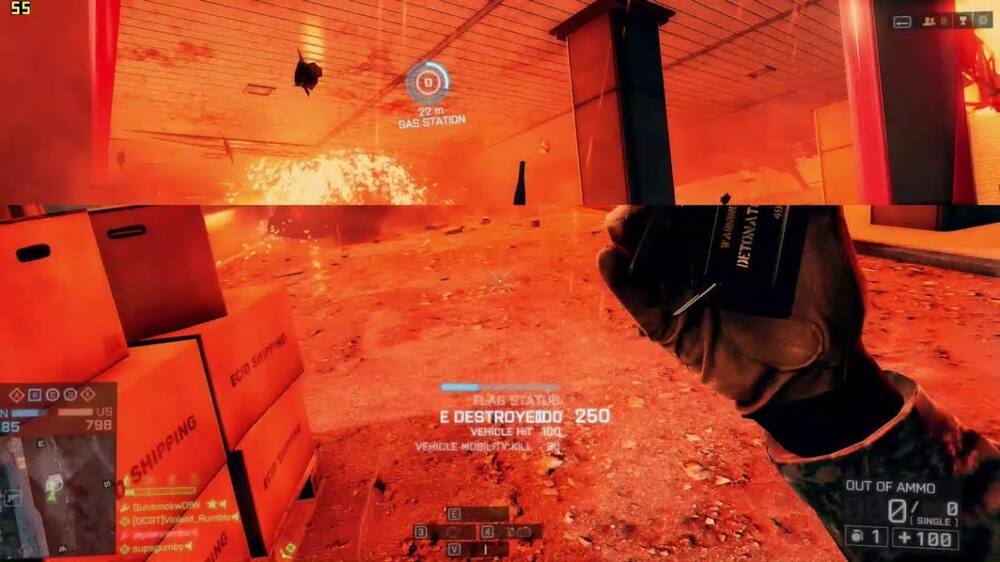
想像你的顯示卡是個瘋狂畫家,螢幕是畫布。如果畫家畫得太快(FPS 很高),螢幕還來不及把第一張圖換下來,畫家就把第二張圖硬塞上去。結果你就會在畫布上看到上半部是第一張圖、下半部是第二張圖的詭異景象,這就是「畫面撕裂」。
2. 垂直同步 (V-Sync):古老且暴力的解法
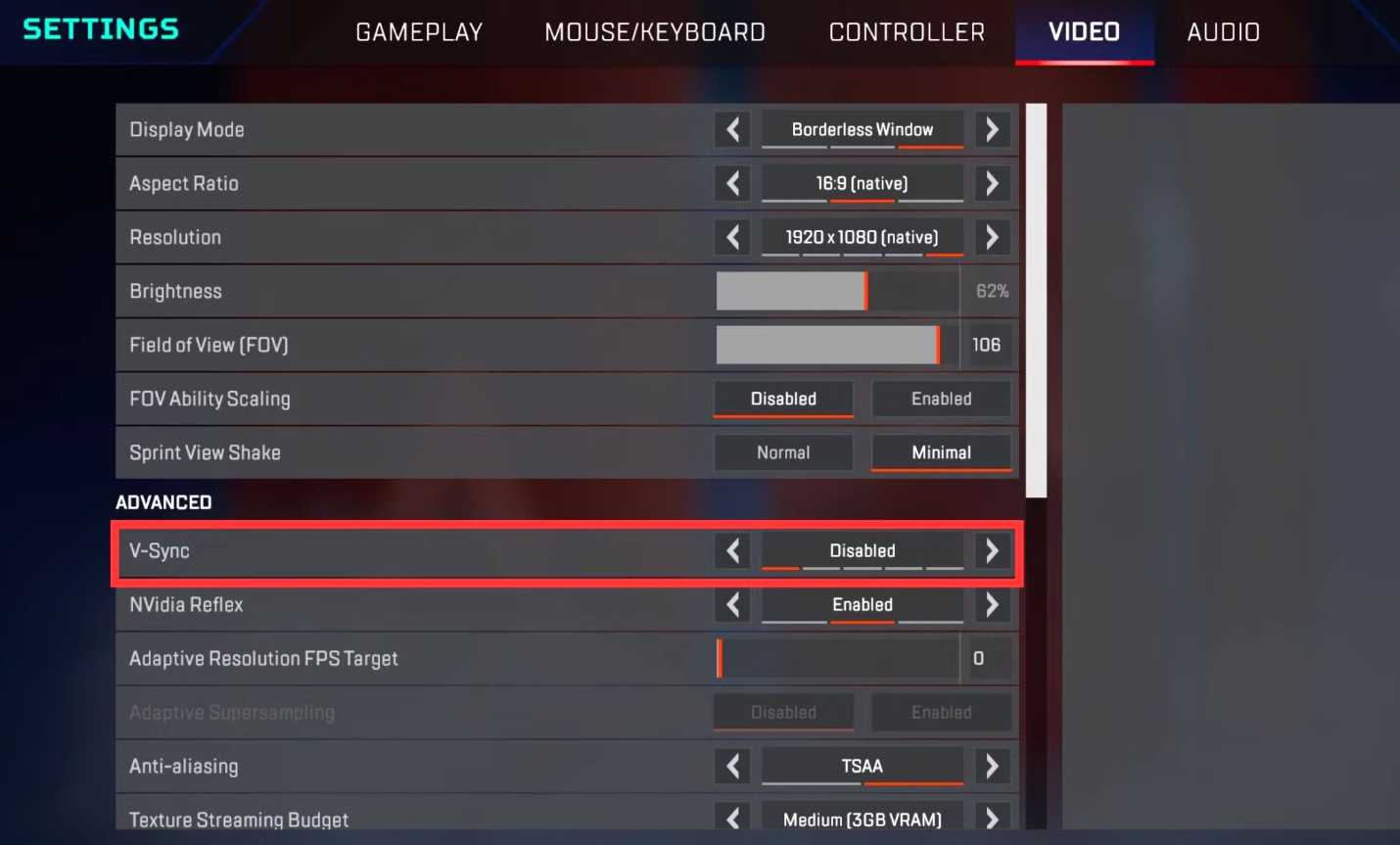
V-Sync 的做法很簡單:直接把顯卡的脖子掐住。它強制顯卡必須等螢幕把整張圖顯示完,才能交下一張圖。
- 優點: 畫面絕對不會撕裂。
- 致命傷 (輸入延遲): 因為顯卡在「等」,你按下開槍的瞬間,顯卡雖然處理好了,但必須排隊等螢幕更新才顯示出來。這微小的時間差,在競技遊戲裡就是生與死的距離。
3. G-Sync / FreeSync:聰明的現代魔法
後來 NVIDIA 和 AMD 發明了聰明的方法。與其讓顯卡等螢幕,不如讓螢幕去配合顯卡! 顯卡畫多快,螢幕的刷新率就跟著變多快(這叫動態刷新率 VRR)。
這完美解決了撕裂問題,而且「幾乎」不會增加延遲。
一張表比較四種設定
| 設定 | 畫面撕裂 | 輸入延遲 | FPS 偏低時 | 適合 |
|---|---|---|---|---|
| 全部關閉 | 會撕裂 | 最低 | 撕裂更明顯 | 競技遊戲(可搭配 NVIDIA Reflex) |
| 垂直同步 V-Sync | 不會 | 明顯增加 | 容易卡頓、掉幀 | 不在意延遲的單機或老遊戲 |
| G-Sync/FreeSync(VRR) | 在支援範圍內不會 | 幾乎不增加 | 依然平順 | 單機大作、幀率起伏大的遊戲 |
| VRR+限制 FPS 略低於更新率 (例如 144Hz 限 141 FPS) | 不會 | 低 | 依然平順 | 想同時兼顧不撕裂與低延遲 |
※ 想確認 VRR 有沒有生效,可以用 VRR 測試觀察幀率起伏時的畫面。
4. VRR 的運作範圍:超出就失效
G-Sync 與 FreeSync 並不是在任何 FPS 下都有效,每台螢幕都有自己的「VRR 範圍」,例如 48–144Hz。要理解以下兩個邊界:
- FPS 低於下限:多數支援的螢幕會啟用「低幀率補償(LFC)」,把每張畫面重複顯示兩次以上,讓更新率回到範圍內。通常要求上限至少約是下限的兩倍,才能順利運作,規格依螢幕而異。
- FPS 高於上限:超過螢幕最高更新率時,VRR 就不再接管,畫面會回到「撕裂」或「V-Sync 延遲」的老問題。這也是為什麼常見建議是把 FPS 限制在略低於螢幕上限(例如 144Hz 限制在 141 FPS 左右)。
另外,G-Sync 有幾種名稱:「G-Sync」(螢幕內建專用模組)、「G-Sync Compatible」(本質是 FreeSync/Adaptive-Sync,經 NVIDIA 驗證),而 AMD 則有 FreeSync、FreeSync Premium 等等級。買螢幕時要看實際規格,而不是只看名稱。
5. 常見的設定組合(以 Windows 為例)
由於驅動程式介面常常改版,以下僅說明原則,具體選項名稱請以你的驅動版本為準:
- 先在驅動程式啟用 VRR:NVIDIA 控制面板的「設定 G-SYNC」,或 AMD Radeon 軟體的 FreeSync 選項。
- 垂直同步的搭配:在 G-Sync 的常見建議中,會在驅動層級把垂直同步設為「開啟」,並在遊戲內關閉,這樣 FPS 超過上限時也不會撕裂,同時 VRR 範圍內不會增加延遲。不同玩家與評測對細節有不同做法,建議自己實測。
- 限制 FPS:用驅動或遊戲內的 FPS 上限,把幀率限制在略低於更新率。
- 確認螢幕端:有些螢幕 OSD 可以顯示即時更新率,打開後可以看到更新率是否隨著 FPS 變動。
6. 其他你可能看到的選項
- Fast Sync/Enhanced Sync:顯示卡全速運算,只挑最新的一張畫面送去螢幕,不需要等待。FPS 遠高於更新率時有機會同時降低撕裂與延遲,但在 FPS 不夠高時反而會出現卡頓,效果因遊戲而異。
- NVIDIA Reflex/AMD Anti-Lag:這類功能重點是縮短「CPU 到顯示卡」之間的排隊時間,不是同步技術,需要遊戲支援,可以和 VRR 搭配使用。
- 低延遲模式:驅動中的「低延遲模式」同樣是調整渲染佇列,不同遊戲的收益不同。
這些選項的實際差異,通常需要專業儀器(如高速攝影機或延遲量測器)才能準確量化,網頁工具只能作為輔助參考,建議配合自己的體感測試。
7. 怎麼自己驗證設定有沒有生效?
- 看螢幕 OSD:很多電競螢幕可以開啟即時更新率顯示,FPS 變動時數字也跟著變,代表 VRR 運作中。
- 用 VRR 測試:讓幀率起伏時觀察畫面是否還有撕裂或卡頓。
- 用 UFO 動態殘影測試:確認螢幕確實跑在你設定的更新率上,同時看殘影程度。
- 比較體感:同一個遊戲場景,分別在「全部關閉」「VRR+限幀」之間切換,感受瞄準的黏手程度與畫面連貫性。
請注意,網頁瀏覽器的畫面更新受到作業系統合成器影響,不一定能完全反映獨佔全螢幕遊戲的狀態,所以網頁上的 VRR 測試結果僅供參考。
💡 結論:到底要不要開?
打競技遊戲 (CS2、特戰英豪): 建議全部關閉,追求最低延遲。如果有支援,可以開啟 NVIDIA Reflex 來降延遲。
打 3A 單機大作 (黑神話、巫師): 享受風景最重要。打開 G-Sync/FreeSync,讓畫面滑順無比吧!
1. Why Does the Screen "Tear"?
Imagine your GPU is a hyperactive painter and your monitor is the canvas. If the painter works too fast (very high FPS), before the monitor can finish displaying frame 1, the GPU shoves frame 2 onto the canvas. The result? The top half is frame 1, the bottom half is frame 2. That's "Screen Tearing."
2. V-Sync: The Ancient, Brute-Force Fix
V-Sync puts a leash on your GPU. It forces the graphics card to wait until the monitor finishes drawing the current frame before sending the next one.
- Pro: Zero screen tearing.
- The Fatal Flaw (Input Lag): Because the GPU is "waiting", when you click to shoot, the action is delayed in a queue before showing up on screen. In competitive games, this tiny delay gets you killed.
3. G-Sync / FreeSync: Modern Magic
NVIDIA and AMD eventually found a smarter way. Instead of making the GPU wait, make the monitor adjust to the GPU! If the GPU outputs 90 FPS, the monitor instantly shifts to 90Hz (Variable Refresh Rate).
This completely eliminates tearing with virtually zero added input lag.
The Four Settings at a Glance
| Setting | Tearing | Input lag | When FPS drops below the refresh rate | Best for |
|---|---|---|---|---|
| Everything off | Yes | Lowest | Tearing gets worse | Competitive games (pair with NVIDIA Reflex) |
| V-Sync | No | Noticeably higher | Stutters and dropped frames | Single-player or older games where lag doesn't matter |
| G-Sync/FreeSync (VRR) | No, within the supported range | Almost none added | Still smooth | Single-player titles and games with uneven frame rates |
| VRR + FPS cap just below the refresh rate (e.g. 141 FPS on 144Hz) | No | Low | Still smooth | No tearing and low lag at the same time |
* To check whether VRR is working, watch the picture while the frame rate swings in our VRR test.
4. The VRR Window: Outside It, the Magic Stops
G-Sync and FreeSync do not work at every frame rate. Each monitor has a "VRR range," for example 48–144 Hz. Two edges to understand:
- FPS below the lower limit: Most supported monitors enable Low Framerate Compensation (LFC), which repeats each frame two or more times to bring the refresh rate back into range. It usually needs the upper limit to be roughly twice the lower limit, and the exact requirement varies by monitor.
- FPS above the upper limit: Past the monitor's maximum, VRR stops handling it and you are back to tearing or V-Sync latency. That is why the common advice is to cap your FPS slightly below the monitor's maximum, for example around 141 FPS on a 144 Hz display.
The names also vary: "G-Sync" (a dedicated module inside the monitor), "G-Sync Compatible" (essentially FreeSync / Adaptive-Sync validated by NVIDIA), and AMD's FreeSync and FreeSync Premium tiers. Read the actual specs rather than only the label.
5. Common Setup Combinations (Windows)
Driver menus change often, so this covers the principles only. Option names depend on your driver version:
- Enable VRR in the driver first: "Set up G-SYNC" in the NVIDIA Control Panel, or the FreeSync option in AMD Software.
- How V-Sync fits in: A common G-Sync recommendation is to set V-Sync to "On" at the driver level and off in the game, so there is no tearing when FPS exceeds the limit while VRR within the range adds no latency. Players and reviewers differ on the details, so test it yourself.
- Cap your FPS: Use the driver or an in-game limiter to cap the frame rate slightly below the refresh rate.
- Check the monitor: Many monitors can show the live refresh rate in the OSD, so you can see it follow your FPS.
6. Other Options You Might See
- Fast Sync / Enhanced Sync: The GPU renders at full speed and only the newest frame is sent to the monitor, with no waiting. When FPS is far above the refresh rate it can reduce tearing and latency together, but with lower FPS it can cause stutter. Results vary by game.
- NVIDIA Reflex / AMD Anti-Lag: These shorten the queue between the CPU and the GPU. They are not sync technologies, need game support, and can be combined with VRR.
- Low latency modes: Driver-level low latency settings also adjust the render queue, and the gain differs from game to game.
Measuring the real difference between these options accurately takes specialized equipment such as a high-speed camera or a latency analyzer. Web tools are only a supporting reference, so combine them with your own hands-on testing.
7. How to Verify Your Settings Took Effect
- Watch the monitor OSD: Many gaming monitors can show the live refresh rate. If the number follows your FPS, VRR is working.
- Use the VRR test: Make the frame rate fluctuate and check for tearing or stutter.
- Use the UFO motion test: Confirm the display really runs at the rate you set and see how bad the ghosting is.
- Compare by feel: In the same game scene, switch between "everything off" and "VRR plus FPS cap" and notice how heavy the aim feels and how smooth the motion is.
Note that a browser's frame updates are affected by the operating system's compositor and may not fully reflect what happens in exclusive fullscreen games, so web-based VRR results are a reference only.
💡 Verdict: Should You Turn It On?
Competitive FPS (CS2, Valorant): Turn everything OFF for the lowest possible latency. Use NVIDIA Reflex if available.
AAA Story Games (Witcher, Cyberpunk): Immersion is key. Turn ON G-Sync/FreeSync for buttery smooth visuals without tearing!
Is your monitor maxed out?
After adjusting your sync settings, check if your monitor is hitting its peak refresh rate without severe ghosting.
Run UFO Test ⚡ Compare on vs off with the reaction challenge