買了 144Hz 卻還在用 60Hz?Windows 必做的 5 大電競最佳化設定
一句話說明:很多高更新率螢幕其實跑在 60Hz:先到顯示設定選最高更新率、改用 DisplayPort 線,再關閉 Windows 滑鼠加速、把 NVIDIA 電源管理設為最大效能並開啟低延遲模式、開啟硬體加速 GPU 排程,最後關掉 RGB 與監控軟體等容易造成微卡頓的背景程式。
你花了大錢買了 144Hz、240Hz 甚至更高更新率的電競螢幕,顯示卡也換上了最新的 RTX 系列,但為什麼在玩《特戰英豪》或《戰地風雲 2042》這類快節奏遊戲時,畫面依然偶爾撕裂,或是拉槍時總覺得手感有些「黏膩」?
告訴你一個硬體圈的恐怖故事:有超過 30% 的玩家,買了高規格配備,卻因為 Windows 系統預設的保護機制,一直用 60Hz 且充滿輸入延遲的狀態在玩遊戲。 今天我們將手把手帶你深入系統底層,完成 5 個關鍵設定,徹底解放你硬體的真正實力。
Bought a 144Hz Monitor but Playing at 60Hz? 5 Must-Do Windows Optimizations
In one sentence: Many high-refresh monitors actually run at 60 Hz. Pick the highest refresh rate in display settings and use a DisplayPort cable, then turn off Windows mouse acceleration, set NVIDIA power management to maximum performance with low latency mode on, enable hardware-accelerated GPU scheduling, and close background apps such as RGB and monitoring tools that cause micro-stutter.
You spent a fortune on a 144Hz, 240Hz, or even higher refresh rate monitor, and upgraded to the latest RTX graphics card. But why does the gameplay in fast-paced shooters like Valorant or Battlefield 2042 still occasionally tear, or aiming feels somewhat "sluggish"?
Here's a hardware horror story: Over 30% of gamers buy high-end setups but unknowingly play at 60Hz with massive input lag due to default Windows safeguards. Today, we will guide you through the deep system levels to configure 5 critical settings, completely unleashing your hardware's true potential.
1. 顯示設定與線材頻寬:打破 60Hz 封印
作業系統為了確保所有螢幕都能點亮,預設輸出通常會被鎖定在最保守的 60Hz。從 60Hz 升級到 144Hz,意味著每一幀畫面的停留時間從 16.6ms 大幅縮短至 6.9ms,這是減少動態模糊最重要的一步。
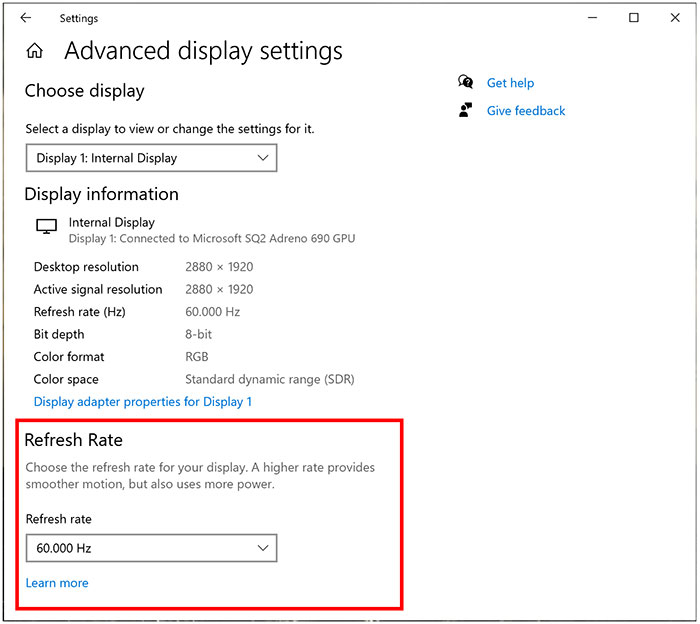
- 路徑: 桌面右鍵 > 顯示設定 > 進階顯示設定 > 重新整理的頻率。
- 檢查與動作: 請毫不猶豫地從下拉選單中選擇最高數值。如果找不到 144Hz 或以上選項,請檢查是否使用了頻寬不足的舊版 HDMI 線;強烈建議電競螢幕一律使用 DisplayPort (DP) 介面連接。
2. 關閉「滑鼠加速」:找回 1:1 的肌肉記憶
這是所有 FPS 職業選手的大忌。Windows 預設會開啟「增強指針準確性(滑鼠加速)」。它的運作邏輯是:當你滑鼠移動得越快,系統會透過演算法幫你把游標推得更遠。
這會導致嚴重的問題:你的手部物理移動距離,與遊戲內的視角轉動距離不再是 1:1 的線性關係。 這種演算法介入會徹底摧毀你辛苦建立的肌肉記憶。
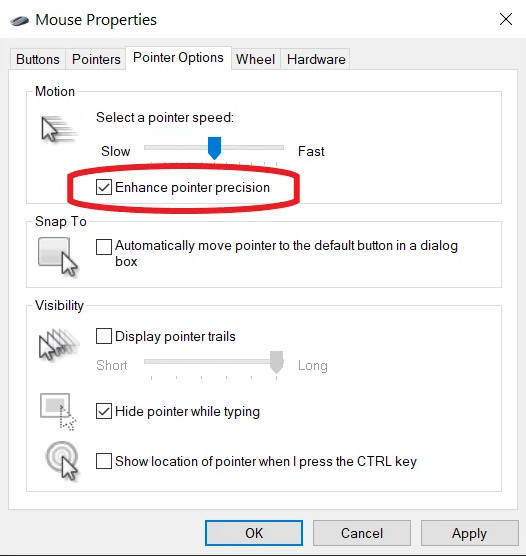
- 路徑: 控制台 > 滑鼠 > 指針選項。
- 動作: 將「增強指針的準確性」取消勾選。確保遊戲內的「原始輸入 (Raw Input)」選項也保持開啟,讓滑鼠感測器的數據直接且無干擾地送達遊戲引擎。
3. NVIDIA 控制面板:榨乾顯卡與低延遲模式
顯示卡預設的電源管理是為「節能」設計的,在遊戲負載劇烈波動時,顯卡可能會頻繁升降頻率,導致幀數突降 (1% Low FPS 表現差)。同時,我們還要透過驅動層級減少渲染排隊等待的時間。
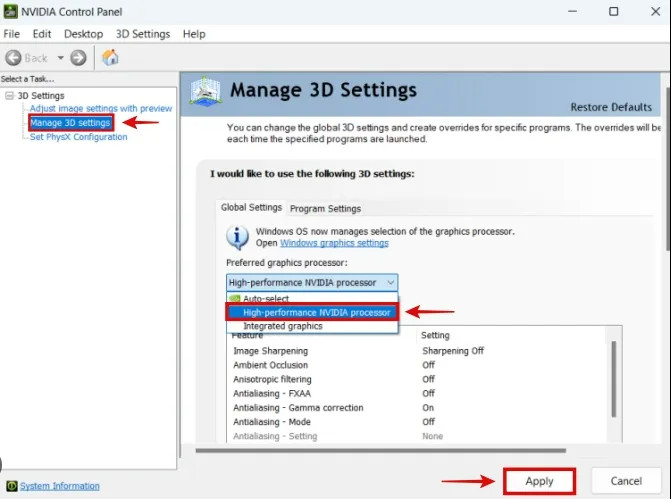
- 電源管理模式: 桌面右鍵 > NVIDIA 控制面板 > 管理 3D 設定。找到「電源管理模式」,改為「慣用的最大效能」,強迫顯卡在 3D 運作時保持最高時脈。
- 低延遲模式 (Low Latency Mode): 將此選項設為「超高 (Ultra)」。這會強制 CPU 不再預先囤積渲染幀 (Render Queue 設為 0),讓 CPU 與 GPU 即時同步處理畫面,能極大地降低從滑鼠點擊到螢幕顯示開火的「系統延遲 (System Latency)」。
4. 系統級優化:開啟 HAGS (硬體加速 GPU 排程)
Hardware-Accelerated GPU Scheduling (HAGS) 是 Windows 帶來的一項底層架構更新。過去,顯示記憶體 (VRAM) 的分配是由 CPU 負責管理的;開啟 HAGS 後,這項工作將直接交還給 GPU 內部的硬體排程器自行處理。
這能有效減輕 CPU 的高頻負載,特別是在 CPU 效能成為瓶頸(CPU Bound)的遊戲場景下,能顯著提升畫面流暢度並減少卡頓。
- 路徑: Windows 設定 > 系統 > 顯示器 > 圖形設定。
- 動作: 將「硬體加速 GPU 排程」開啟,並重新啟動電腦。
5. 進階除錯:降低 DPC 延遲與微卡頓 (Micro-stutter)
即便幀數高達 200 FPS,你還是可能感覺畫面「卡卡的」,這通常是 DPC 延遲 (Deferred Procedure Call Latency) 造成的。當系統背景有設計不良的驅動程式在霸佔 CPU 週期時,遊戲的運算就會被迫中斷。
最佳化建議: 在進行競技遊戲前,請關閉不必要的背景常駐程式。尤其是各大廠的 RGB 燈光同步軟體、硬體監控軟體,這些會頻繁輪詢主機板感測器的軟體,往往是造成 DPC 延遲飆高、引發微卡頓 (Micro-stuttering) 的元兇。
設定好了嗎?來驗收成果!
完成上述最佳化後,你的螢幕應該要能顯示毫無撕裂的清晰飛碟圖案,且滑鼠的每一次移動都會感到前所未有的「跟手」。
立即進行 UFO 動態殘影測試 ⚡ 設定前後比一比:反應時間挑戰1. Display Settings & Cable Bandwidth: Breaking the 60Hz Seal
To ensure maximum compatibility, operating systems default to a conservative 60Hz. Upgrading from 60Hz to 144Hz means frame persistence drops drastically from 16.6ms to 6.9ms, which is the single biggest step in reducing motion blur.
- Path: Right-click Desktop > Display Settings > Advanced Display > Refresh Rate.
- Action: Pick the highest number available. If 144Hz or higher isn't showing, check if you're using an older HDMI cable with insufficient bandwidth. We highly recommend using a DisplayPort (DP) connection for gaming monitors.
2. Disable "Mouse Acceleration": Regain 1:1 Muscle Memory
This is the ultimate taboo for professional FPS players. Windows enables "Enhance Pointer Precision" (mouse acceleration) by default. Its logic: the faster you move your mouse physically, the further the algorithm pushes the cursor on screen.
This creates a severe issue: your physical hand movement and the in-game crosshair movement no longer share a 1:1 linear relationship. This algorithm intervention destroys muscle memory.
- Path: Control Panel > Mouse > Pointer Options.
- Action: UNCHECK "Enhance pointer precision". Also, ensure the "Raw Input" setting in your game menu is enabled, allowing sensor data to bypass Windows and go straight to the game engine.
3. NVIDIA Control Panel: Maximize Performance & Low Latency
By default, GPU power management prioritizes "energy saving." During intense gaming workloads, the GPU might aggressively adjust clock speeds, leading to frame drops (poor 1% Low FPS). We also need to minimize the render queue at the driver level.
- Power Management Mode: Right-click Desktop > NVIDIA Control Panel > Manage 3D Settings. Change "Power management mode" to "Prefer maximum performance" to force peak clock speeds during 3D rendering.
- Low Latency Mode: Set this to "Ultra". This stops the CPU from buffering frames ahead of time (sets render queue to 0), forcing the CPU and GPU to process frames just-in-time. This drastically reduces "System Latency"—the time between your mouse click and the muzzle flash on screen.
4. System Level Tweaks: Enable HAGS
Hardware-Accelerated GPU Scheduling (HAGS) is a fundamental architectural update in Windows. Previously, video memory (VRAM) allocation was managed by the CPU. With HAGS enabled, this task is offloaded directly to the GPU's internal hardware scheduler.
This significantly reduces high-frequency CPU overhead. In CPU-bound gaming scenarios, it can noticeably improve frame pacing and reduce stutters.
- Path: Windows Settings > System > Display > Graphics settings.
- Action: Toggle on "Hardware-accelerated GPU scheduling" and reboot your PC.
5. Advanced Debugging: Reduce DPC Latency & Micro-stutters
Even if you are pushing 200 FPS, the game might still feel "choppy." This is often caused by high DPC (Deferred Procedure Call) Latency. When poorly optimized background drivers hog CPU cycles, game processing gets interrupted.
Optimization Advice: Before playing competitive games, close unnecessary background applications. Pay special attention to RGB lighting sync software and hardware monitoring tools from major brands. These programs frequently poll motherboard sensors and are notorious culprits for spiking DPC latency and causing micro-stuttering.
All set? Let's verify!
After these optimizations, your monitor should display crisp UFOs with zero screen tearing, and every mouse movement should feel incredibly raw and precise.
Run UFO Motion Blur Test Now ⚡ Compare before & after: reaction challenge